
One wallet for the money leaving and the rent arriving.
Add the cards that fund tradie escrow and your plan, onboard the bank rent pays into: every number held by Stripe, none by LORDLY.

One screen holds the money rails behind LORDLY: the Stripe cards that fund tradie escrow and your subscription, with a default you set, and the Stripe Connect Express bank account tenants’ rent debits pay out to. Card and bank details are held by Stripe, never by LORDLY, and it opens once you start using escrow-backed marketplace jobs or rent payouts, from Solo and above.
Cards that fund the work
Save one or more cards and LORDLY keeps them ready: one funds tradie escrow when you approve a marketplace quote, and the same wallet pays your LORDLY subscription. Adding a card opens Stripe’s own sheet, so the number goes straight to Stripe on a no-charge SetupIntent, saved for next time. Mark one card default and it becomes the card that auto-funds escrow the moment you approve a job; remove any card in a tap.
The bank account rent pays into
Onboard a payout bank once through Stripe Connect Express, and tenants’ BECS direct-debit rent lands there within one to two business days of settlement. A status pill tracks it honestly, moving from Not set up to Verifying with Stripe to Bank linked, so you always know whether rent has somewhere to go. If Stripe needs one more detail to finish, the screen says so and picks up exactly where you left off.
Held by Stripe, the same on every screen
LORDLY never sees or stores a card or bank number. Stripe (PCI Level 1 certified) holds them, and we only ever read back the brand, last four and status. It’s one Stripe customer behind your phone and the web portal, so a card added in the app appears in Settings → Payment methods and vice versa. From the same wallet you can open rent received, marketplace spend with escrow held and released, and your plan’s invoices.
Exactly where it lives.
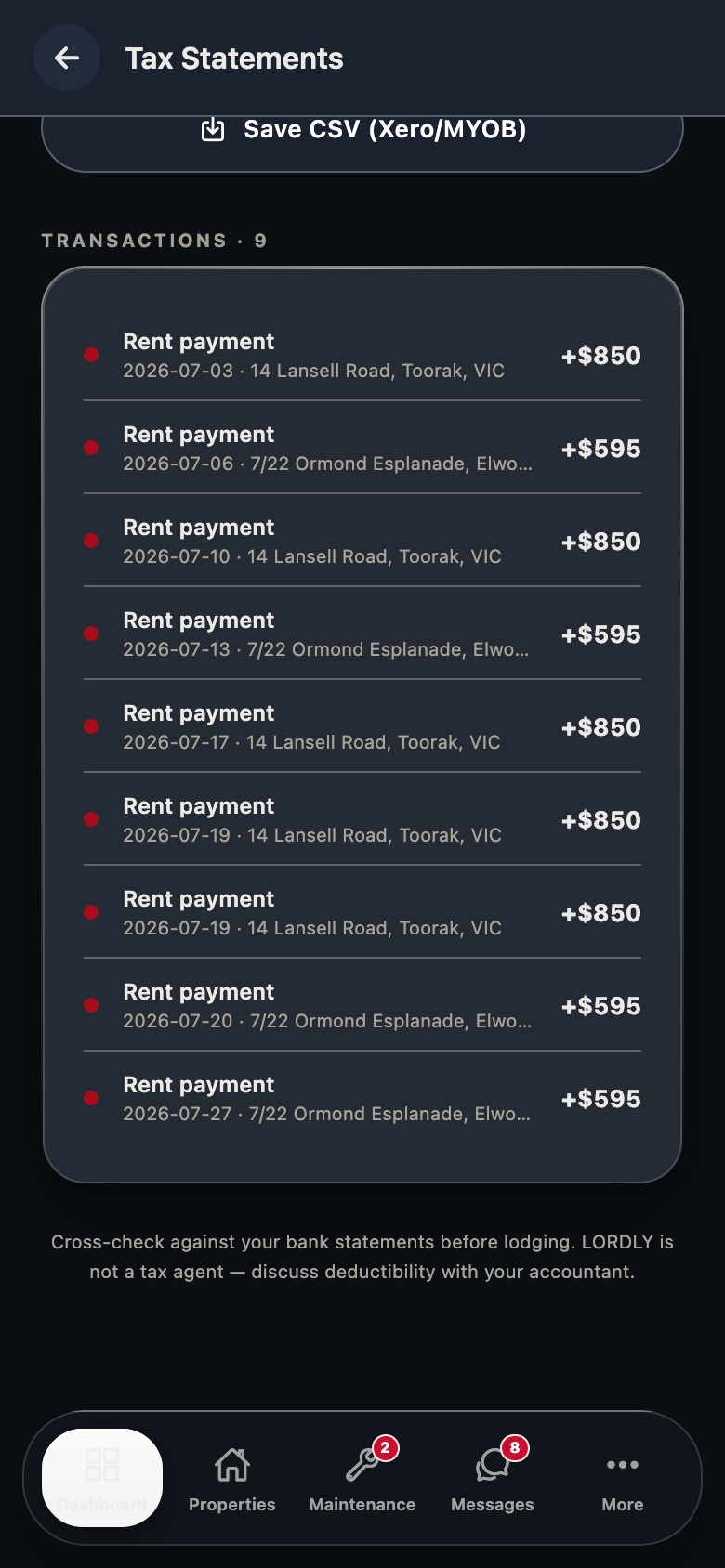
Real LORDLY app screens · demo portfolio shown · yours once signed in.
From start to done.
- 1Add a cardTap Add a card and Stripe’s sheet opens. Your card number goes straight to Stripe, saved, not charged.
- 2Set your defaultChoose which card auto-funds escrow and your subscription, then mark it default in one tap.
- 3Onboard your payout bankStart Stripe Connect Express and enter the bank account rent should land in. Stripe verifies your details.
- 4Watch it clearThe status pill moves from Verifying to Bank linked once Stripe is done, usually within a few hours.
- 5Track every movementOpen rent received, marketplace spend or plan billing from the same wallet whenever you need the history.
In the app and on the desktop.
- Add or remove cards through the Stripe sheet
- Tap Make default to pick the funding card
- Bank pill: Not set up → Verifying → Bank linked
- Jump to rent received, spend and plan billing
- Same wallet in Settings → Payment methods
- Add cards via Stripe Elements, no app needed
- A card added on web appears in the app, and back
- Manage your plan and invoices in the same settings